|
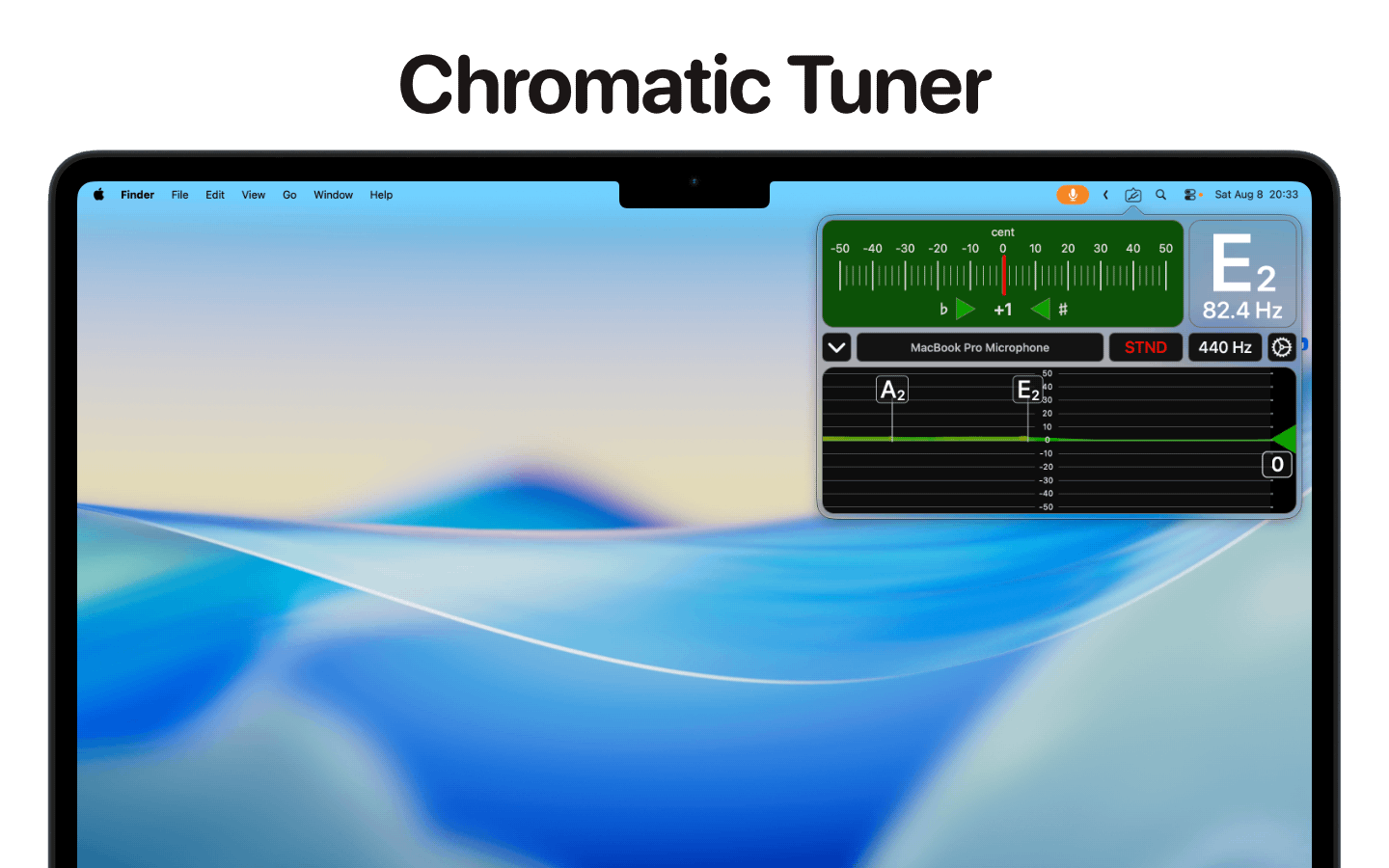
Features
- High-precision chromatic tuner with direct pitch display and highly stable output
- Note symbols in classic notation
- High accuracy (1/10 of a cent)
- Timeline graph: Displays the string’s decay behavior
- Adjustable concert pitch
- Note names:
- English
- German
- Japanese
- Korean
- Chinese
- Greek
- Russian
- Hindustani
- Bengali
- Solfège Fixed do
- Solfège Movable do
Operating System
MacOS 12.0 or later
Download


USER MANUAL
Table of Contents
- Overview
- Tuner
- Tuner Range
- Short cuts
- General Settings
- Concert Pitch
- Accidental
- Show Note Symbol / Key
- Measuring Range Setting
- Connect an Audio Interface
- Tone Names
- Appearance
- Dark/Light mode
- Flying window
- Start app at log in
- Select the language of the app
Overview
ClipOn Tuner is made to tune all instruments.
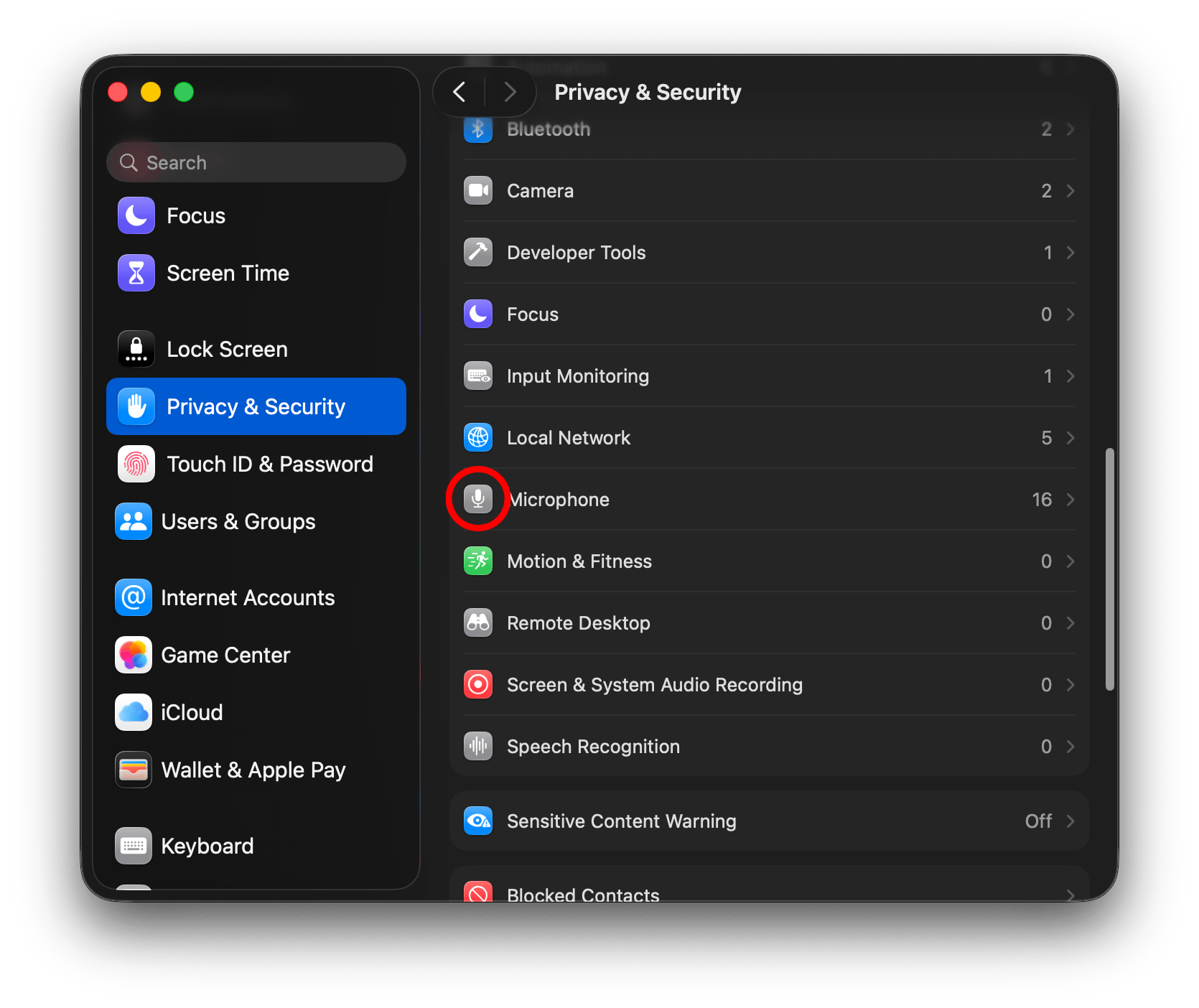
IMPORTANT: When you start ClipOn Tuner for the first time, you are asked to give the program permission to access the microphone. This is necessary for the program to work! If you denied access to the microphone, you can grant permission later in the System settings. Go to the Security & Privacy tab and click on Microphone. Here you can give the app permission to access the microphone (see Figure 1).
The microphone is only used to determine the pitch. No recordings are permanently stored or used outside the app.
Tuner
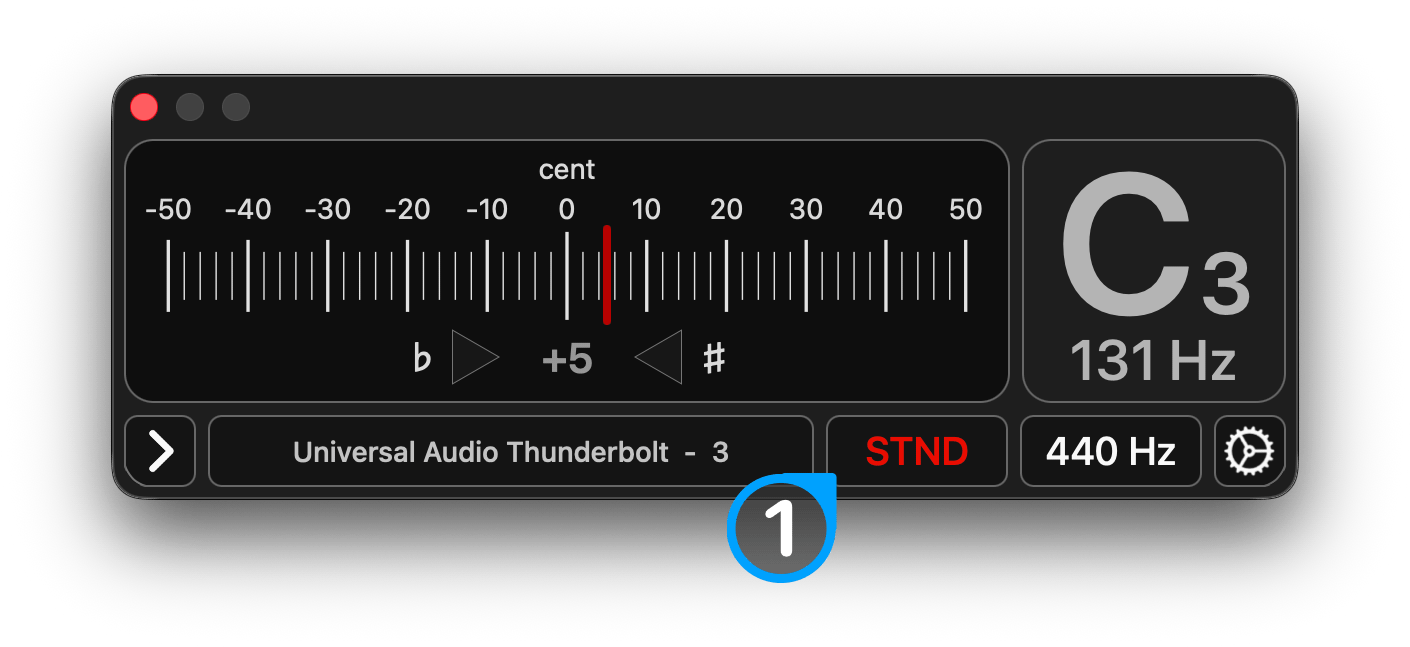
The tuner window (Fig. 2-1) displays the pitch of the played note in cents.
One octave is divided into 12 semitones. Each semitone is further divided into 100 cents.
A reading of zero cents indicates that the played note is in tune. If the cent meter shows a negative value, the note is flat (too low). If the note is sharp (too high), the cent meter shows a positive value.
IMPORTANT: Ensure that the tone you want to tune is within the measuring range. Otherwise, the tuner may display one of the overtones as the result. Always make sure that the tuner range covers the note you want to measure! (see Tuner Range)
Measuring Range Quick Access
See Figure 2-1
(1) - Press to open measuring range
Also see (Measuring Range Setting)
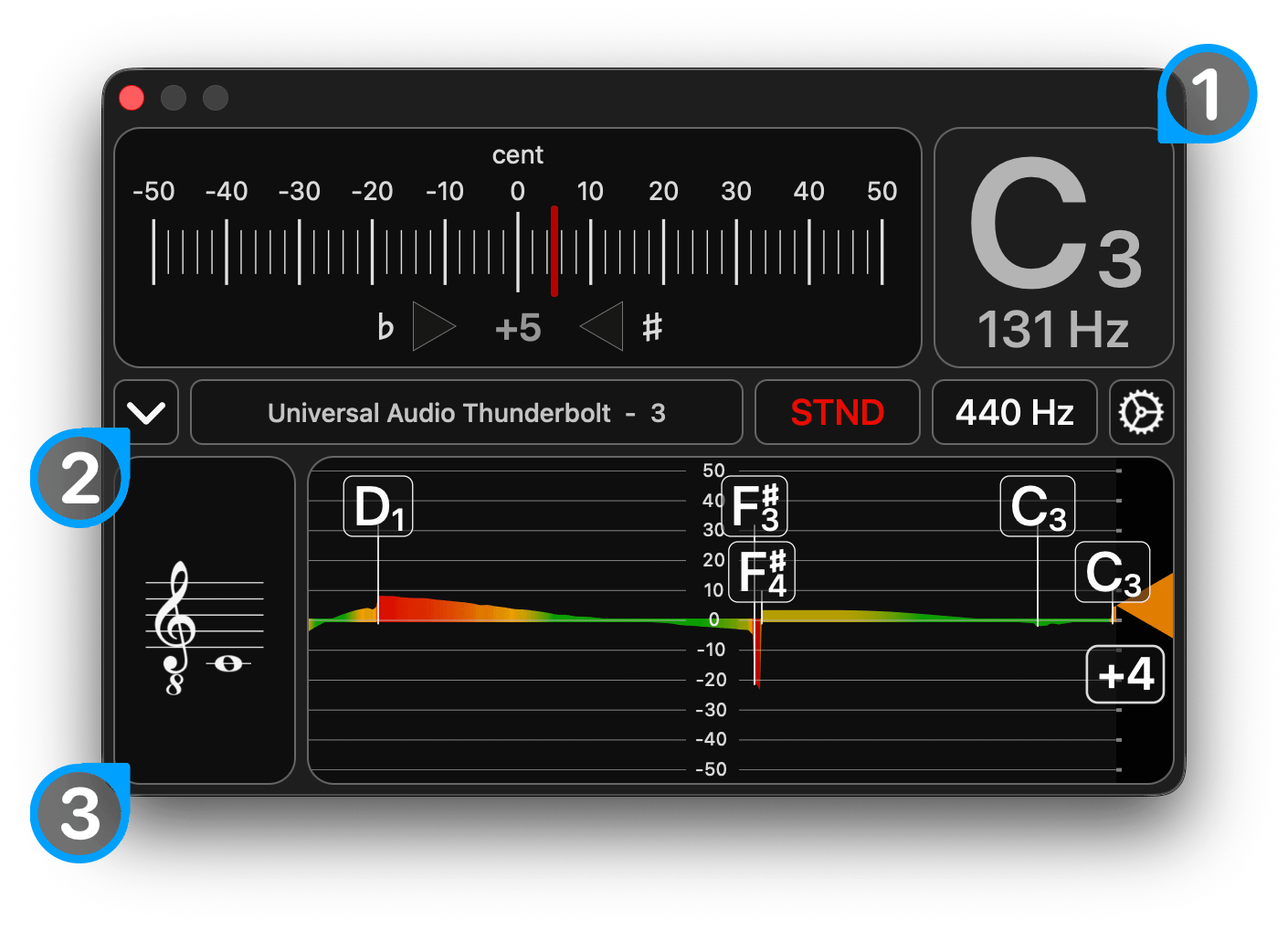
Short cuts
See Figure 2-2
(1) - Tone Names
(2) - Open Timeline Graph
(3) - Select Key
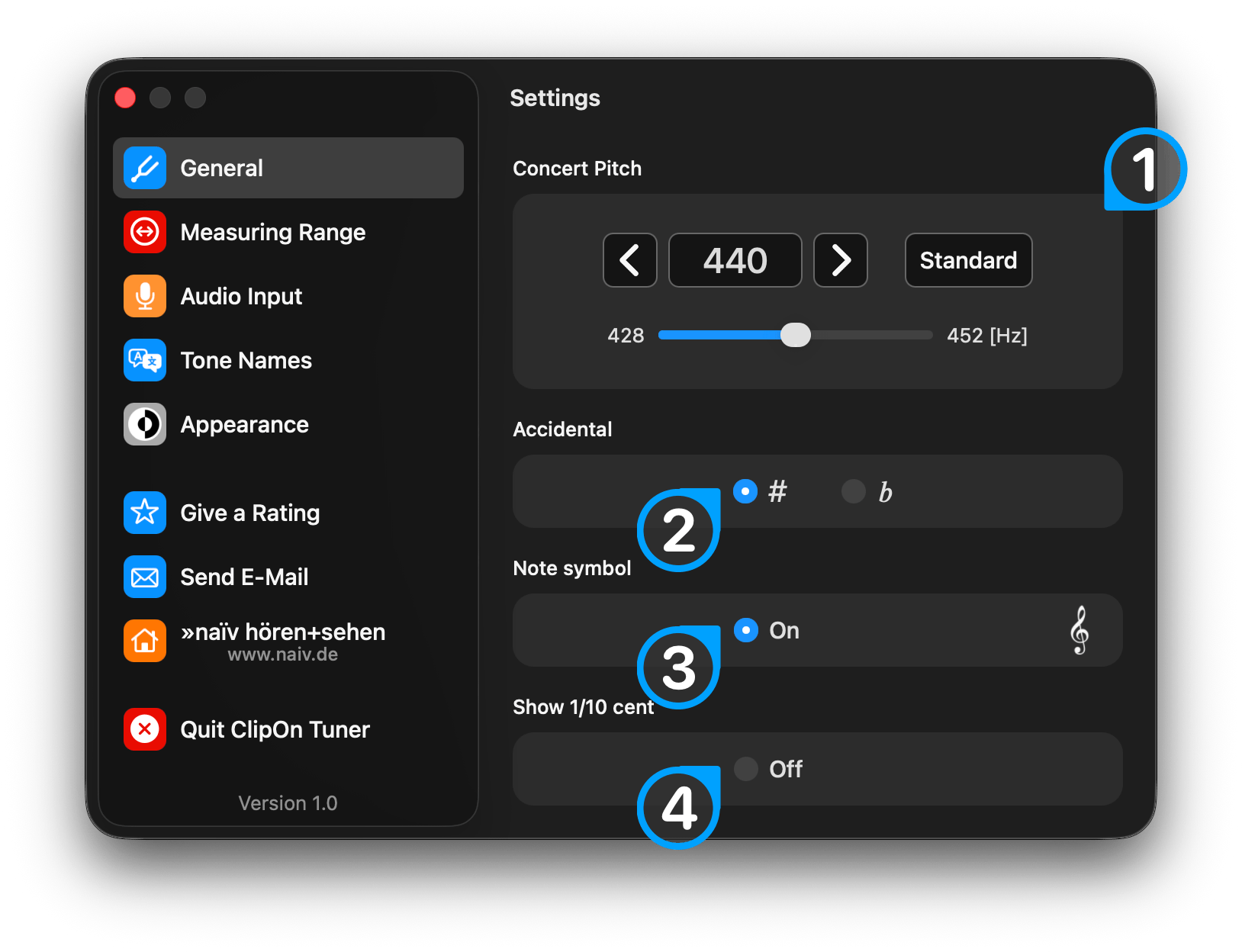
General Settings
Set the app to your likings. See Figure 2-3
(1) - Concert Pitch
(2) - Accidental
(3) - Show Note symbol / Key
(4) - Show high percision
Measuring Range Setting
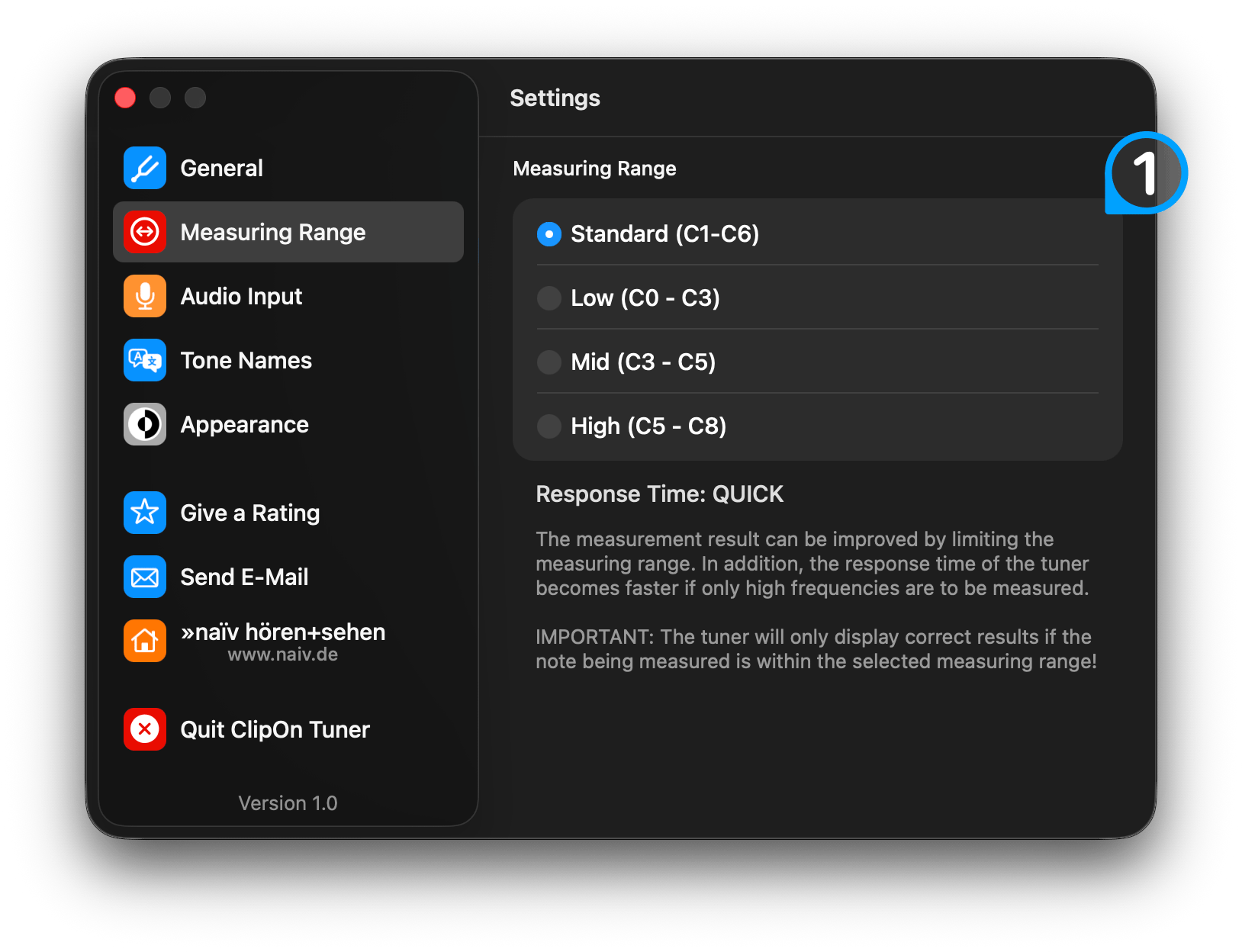
See Figure 2-4
(1) - Measuring Range Selection
Select the range according to your instrument (see Figure 2-4).
By default, the measuring range is set from C1 to C6 to cover most instruments.
Change Response Time
Different measuring ranges affect the tuner's response time.
IMPORTANT: Make sure the tone you’re tuning falls within the selected measuring range. Otherwise, the tuner might display an overtone instead. Always verify that the measuring range covers the note you intend to measure!
Audio Interface
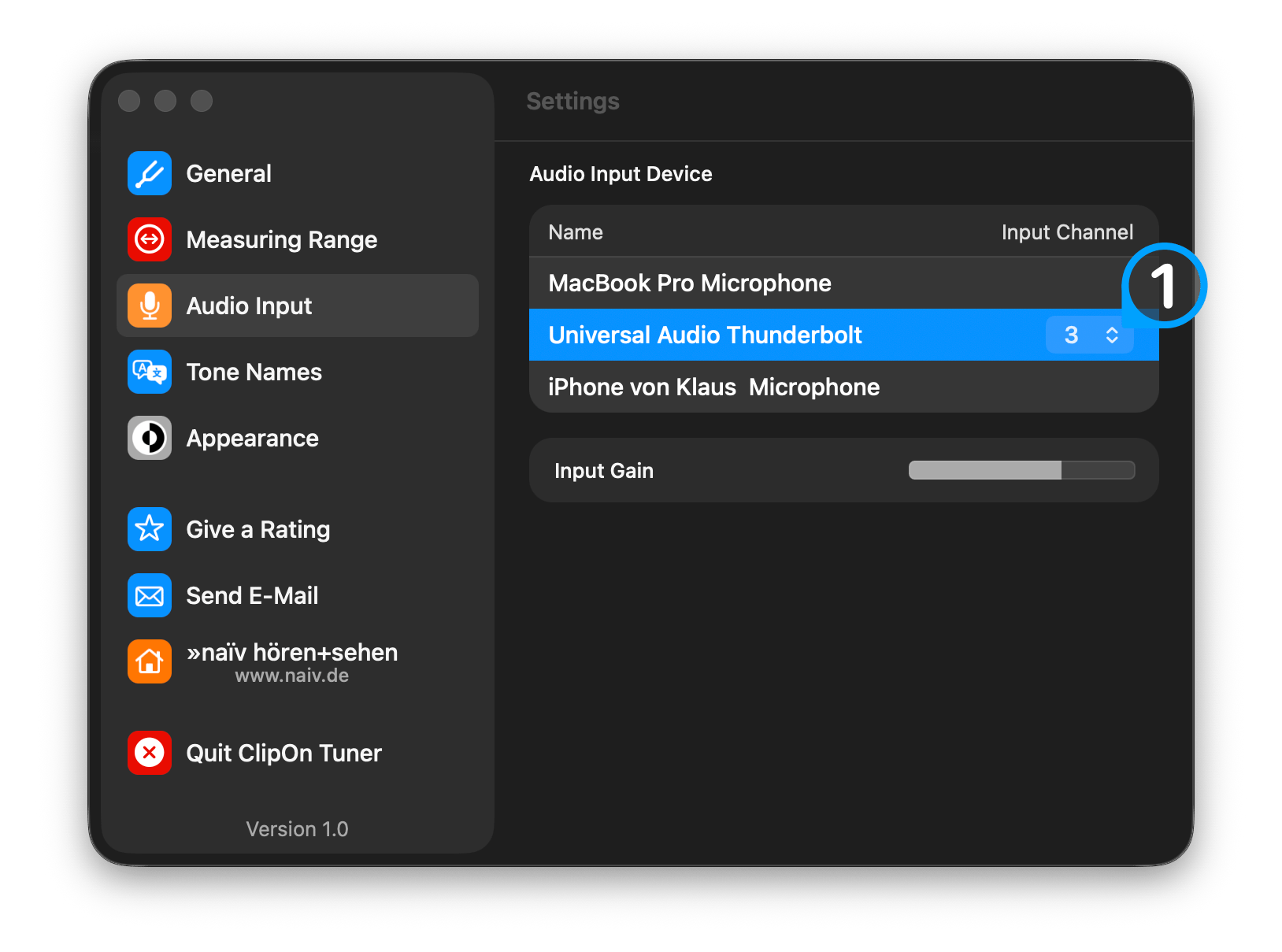
See Figure 3-1
(1) - Select Input Channel
If the audio interface has more than 1 channel, you can select a specific channel (see Figure 3-1).
Tone Names
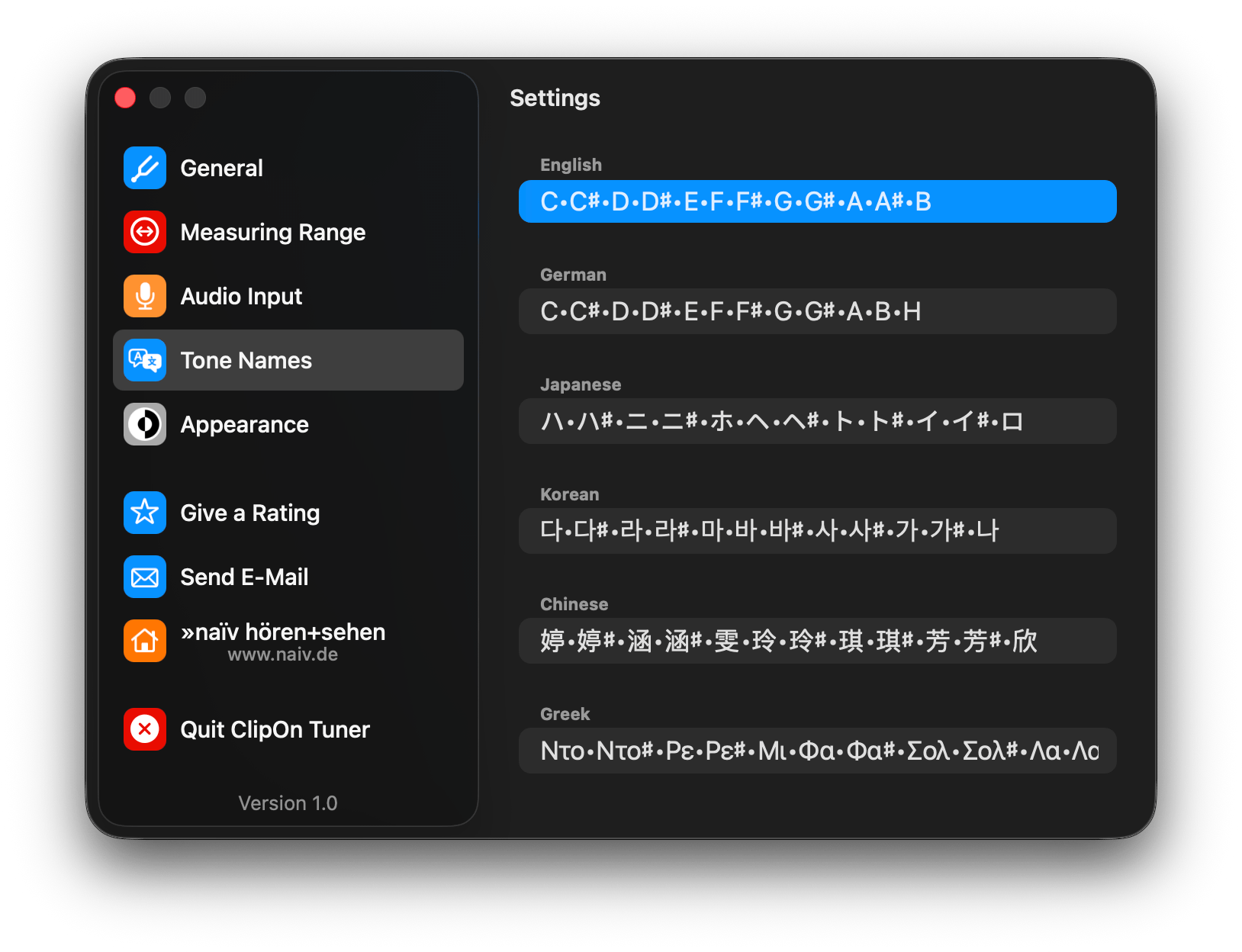
See Figure 4-1
Set the tuner to your prefered tone names.
You can select from the following tone names:
- English
- German
- Japanese
- Korean
- Chinese
- Greek
- Russian
- Hindustani
- Bengali
- Solfège Fixed do
- Solfège Movable do
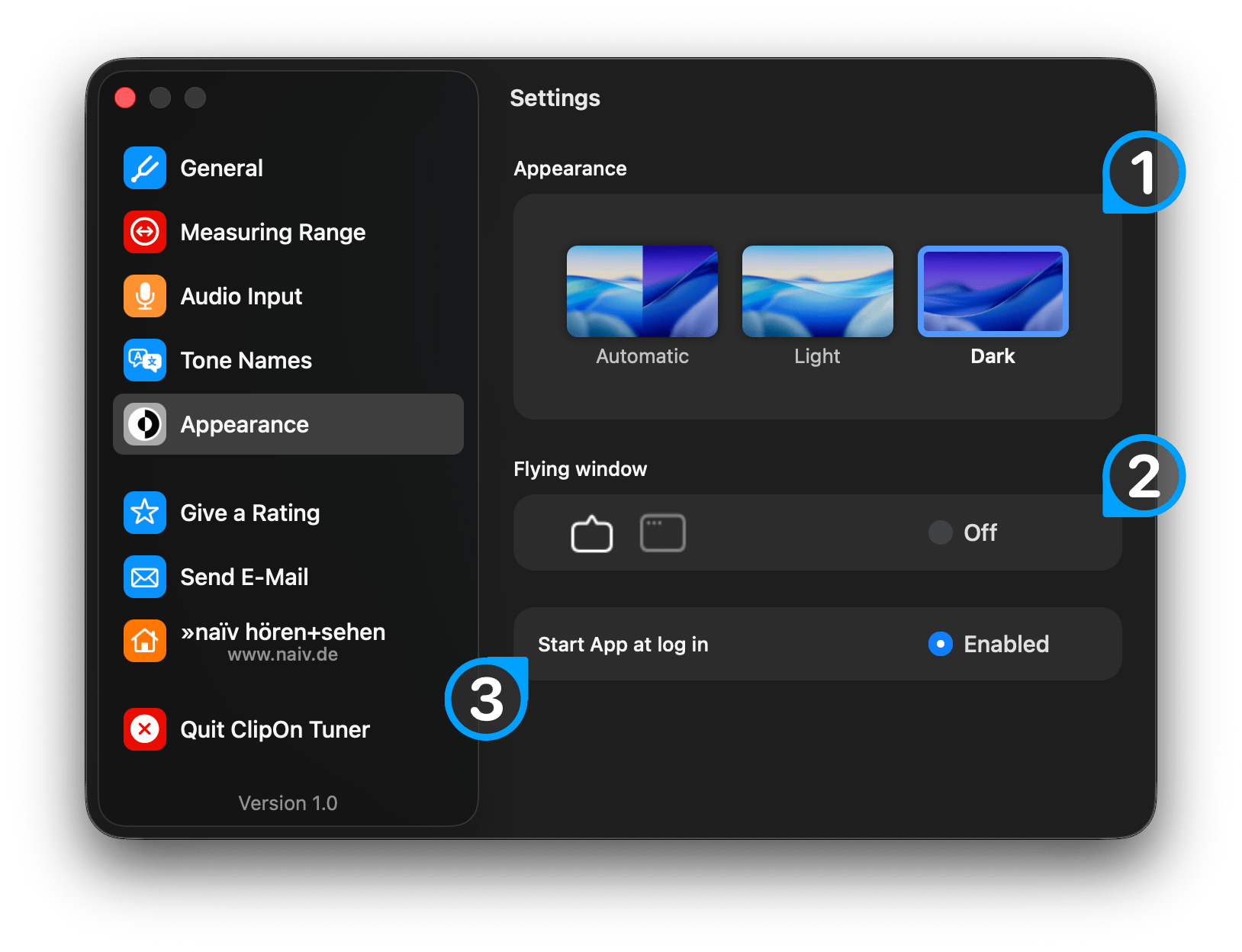
Appearance
See Figure 5-1
(1) - Set Dark/Light-Mode
Automatic-Mode will set the app to follow the system setting.
(2) - Flying window
Activate if you want to change the position of the tuner window
(3) - Start app at log in
Activate if you want to start the app each time you start your computer.
(4) - Select the language of the app
You can set the app to any language using the pop-up menu.
ClipOn Tuner, MacOs, Download link, Stimmgeraet